


仕事で文字の塗りつぶしで使われている色(背景色)を解析する必要がありました。そのときに、使用されている背景色とその個数を知る必要がありました。
このときに作成したコードを応用して、文書全体で使われている背景色を解析するマクロを紹介します。
16進数のカラーコードで出力します。
<目次>
このマクロでできること
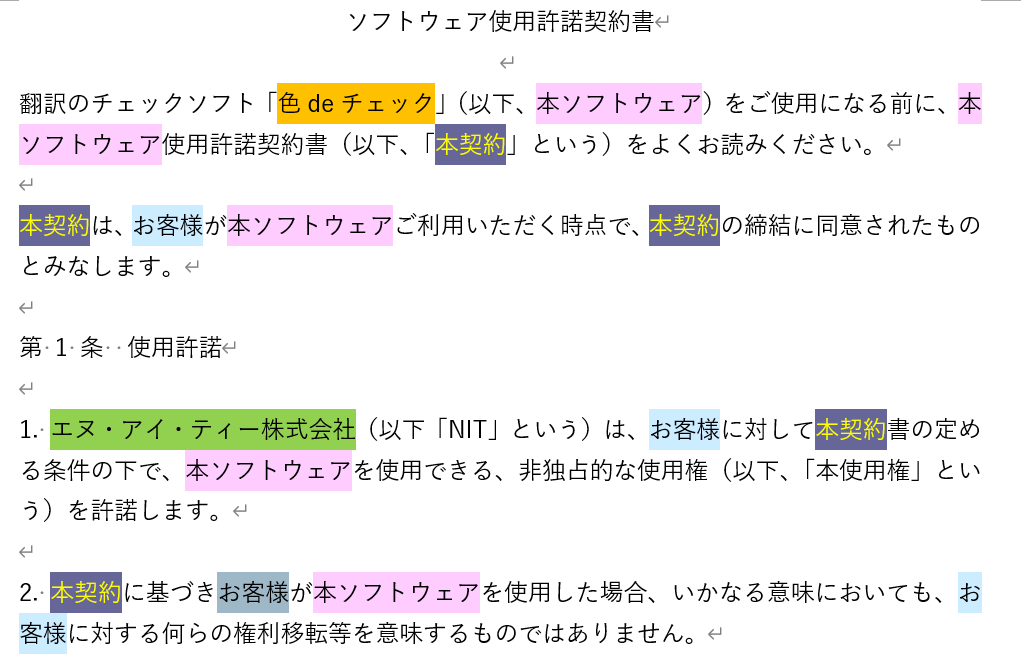
マクロ実行前
以下のように背景色で着色をされているファイルに対して実行します。Wordで動く翻訳チェックソフト「色deチェック」の着色機能でキーワードに着色をしました。
マクロ実行結果
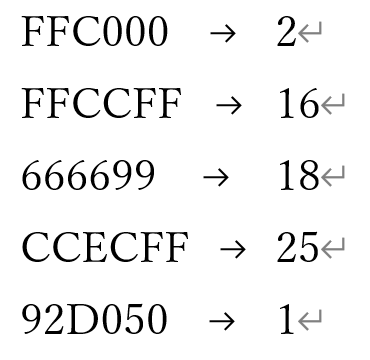
新規ファイルに、背景色のカラーコード(16進数)と対象箇所の数をタブ区切りで出力します。工夫をすれば、実際の背景色で着色をしたり、表にしたり、出現数で並べ替えたりできますね。
マクロの解説
背景色を取得するため、XMLデータを使います。
(参考)【Word VBA】WordのXMLデータを操作するWordマクロ
XMLデータから、背景色の指定で使われているタグを検索してカラーコードを取得します。
その後、カラーコードごとに個数を計算します。
文字列内で検索をしたり個数を計算したりする場合には、VBScriptのRegExを使うと便利です。
データの保存には、連想配列(Dictionaryオブジェクト)を用いています。
マクロ
Sub 使用されている背景色の数をカウントするWordマクロ()

 'XMLファイルの情報を利用して、RegExで背景色の数を数える

 '-------------------------------------------
 'XMLデータの準備
 '-------------------------------------------
 'XMLのデータをstrXML(String変数)に取得
 Dim strXML As String
 strXML = ActiveDocument.Range.WordOpenXML

 '-------------------------------------------
 '前処理
 '-------------------------------------------
 'オブジェクトを設定
 Dim myRe As Object
 Set myRe = CreateObject("VBScript.RegExp")

 '空の文字列の背景色を削除
 With myRe
  .Pattern = "w:fill=""[0-9A-Z]{6}""/></w:rPr></w:pPr>" '検索する文字列
  .IgnoreCase = True     '大文字と小文字を区別しない
  .Global = True       '文字列全体を検索
  strXML = .Replace(strXML, "")
 End With

 '-------------------------------------------
 '使用されているすべての色の登録
 '-------------------------------------------
 Dim myDicColor As Object
 Set myDicColor = CreateObject("Scripting.Dictionary")

 Dim myMatch As Object

 With myRe
  .Pattern = "w:fill=""([0-9A-Z]{6})""" '検索する文字列"
  .IgnoreCase = True     '大文字と小文字を区別しない
  .Global = True       '文字列全体を検索
  Set myMatch = .Execute(strXML)
  If myMatch.Count > 0 Then
   Dim i As Integer
   For i = 0 To myMatch.Count - 1
    Dim myColor As String
    myColor = myMatch(i).SubMatches(0)
    If myDicColor.Exists(myColor) = False Then
     myDicColor.Add myColor, ""
    End If
   Next
  End If
 End With

 '-------------------------------------------
 '色別にカウント数を登録
 '-------------------------------------------
 Dim Key As Variant
 For Each Key In myDicColor.Keys
  With myRe
   .Pattern = """" & Key & """" '検索する文字列
   .IgnoreCase = True     '大文字と小文字を区別しない
   .Global = True       '文字列全体を検索
   Set myMatch = .Execute(strXML)
   myDicColor(Key) = myMatch.Count
  End With
 Next

 '-------------------------------------------
 '結果をWordファイルに出力
 '-------------------------------------------
 Dim myDoc As Document: Set myDoc = Documents.Add

 For Each Key In myDicColor.Keys
  myDoc.Range.InsertAfter Key & vbTab & myDicColor.Item(Key) & vbCr
 Next

 '-------------------------------------------
 '後処理
 '-------------------------------------------
 Set myRe = Nothing
 Set myMatch = Nothing
 Set myDicColor = Nothing
 Set myDoc = Nothing

End Sub